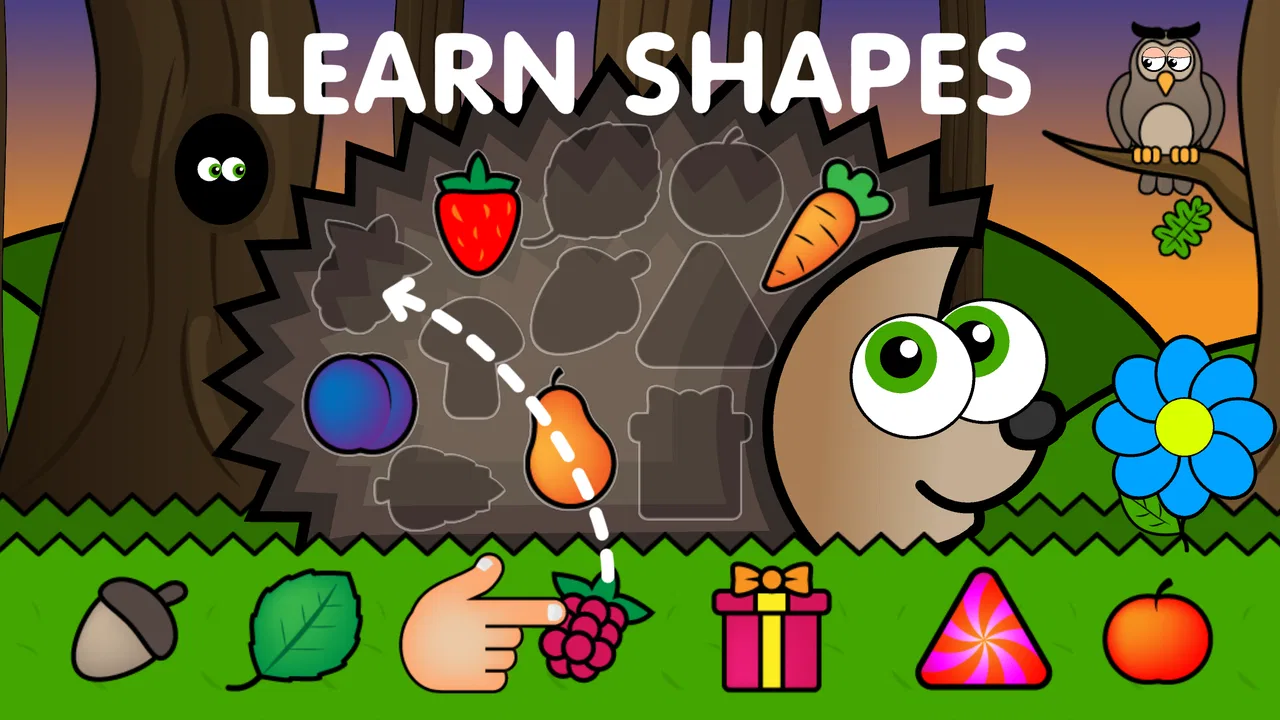
Easy games for kids 2,3,4 year
- 4.3
- Rating
- 10.00M
- Installs
- Free
- Price

 Analysis by App-foxy
When I tried Easy games for kids 2,3,4 year, I approached it less like a conventional game and more like a short activity box for a preschooler. That distinction matters. A young child is not looking for a complicated objective, a long tutorial, or a competitive challenge. They need to understand what to touch, see a clear response, and feel able to try again without waiting for an adult every few seconds. This educational game from Kakadoo is built around that simple idea, and it is aimed at children from one to five years old.
My first impression was that the app makes sense for brief, supervised play rather than a long independent session. It is free to install, rated for Everyone, and has reached over ten million installs with an average rating of 4.3. Those figures suggest that many families have found a use for it, but they do not remove the need to check whether its style suits your child. A two-year-old who enjoys tapping and repeating may respond very differently from a five-year-old who wants puzzles with more depth.
I also found the age range important when judging the experience. The title focuses on children aged two, three, and four, while the broader store summary includes toddlers up to five. In practice, I would treat it as an early-learning companion: useful for hand-eye coordination, recognition, simple choices, and calm practice, but not a replacement for drawing, building, conversation, or physical play.
You May Also Like

 Blood Strike: 2.5 Anniversary
Blood Strike’s Loadouts Turn Every Drop Into a Tactical Gamble
A close look at Blood Strike’s custom loadouts: how fast access to signature weapons reshapes its battle royale rhythm, rewards preparation, and narrows the gap between fights.

 Pandora - Music & Podcasts
Pandora’s Music Is Easy to Start, but Harder to Recover
Pandora’s strength is its low-effort path from a seed to a station. Its weak spot is how much confidence it asks you to place in connection, setup, and quiet recovery.

 8 Ball Pool
 Is Built on Rivalries, Rematches, and Routine
A close look at the rivalries, rematches, shared routines, and unanswered safety questions that turn a quick pool match into a persistent mobile community.

 Samsung Music
’s Quiet Strength Is Playing What You Already Own
Its reach comes less from spectacle than from dependable access to a personal library. That simplicity is both the app’s strongest retention engine and its ceiling.

 AccuWeather: Weather Radar
AccuWeather Review: A Quick, Clear Forecast for Everyday Decisions
For everyday plans, the best forecast is the one you can understand quickly. AccuWeather makes rain timing, radar, and local conditions easy to act on, with a few trade-offs.

 Hill Climb Racing
Why Hill Climb Racing Still Turns Crashes Into One More Run
A tiny car, a bumpy hill and one more upgrade: Hill Climb Racing keeps resurfacing because its simple chaos makes every near-miss feel personal.
More From Our News Desk



Getting past the points where families usually get stuck
I’ve found that the easiest way to prevent a rough start is to decide in advance what a successful short session looks like: one familiar activity, a few attempts the child can manage, and a clear stopping point. This section focuses on keeping that routine simple when attention shifts or navigation gets confusing, so the next part can deal with recovery rather than turning every small interruption into a problem.
The first session needs an adult nearby
The biggest friction is not necessarily the game content. It is the first few minutes of handing a phone or tablet to a child who cannot yet explain what is confusing. A preschooler may tap several areas at once, leave an activity accidentally, or simply wait because the next action is not obvious to them. I recommend sitting beside the child for the first session and showing one action at a time instead of taking over the screen.
That small introduction changes the experience. I would say something like “touch the picture” or “try the big button,” then let the child complete the action. If the adult taps repeatedly to hurry things along, the child learns to watch the adult rather than explore. With an app aimed at very young users, the best setup is usually a quiet place, a comfortable grip, and a short first visit rather than an ambitious learning session.
Another common sticking point is expecting the child to understand the app in the same way an older child understands a game. At this age, repeating a simple action is not a failure of progress. It may be the entire appeal. I would judge success by whether the child can return to an activity, make a choice, and remain interested for a few minutes, not by how quickly they move through everything available.
Touch control is part of the learning curve
Young children often use a whole hand instead of one fingertip. They may drag across the screen, press too hard, or touch the edge while holding the device. That can make an activity appear unresponsive even when the app is working normally. A larger tablet can be easier for a child to see, but it can also be harder for small hands to hold securely. A phone is easier to grip, yet the smaller display may make precise touches more difficult.
I found it helpful to place the device flat on a stable surface during the first attempts. This removes the balancing problem and lets the child concentrate on the screen. Cleaning the display also matters more than many parents expect: fingerprints and food residue can make light touches unreliable. If the child is becoming frustrated, I would pause rather than repeatedly correcting their finger placement.
Do not confuse a quiet response with a broken game
Preschool activities can have gentle feedback rather than dramatic effects. A child may need a moment to notice that a selection registered, especially if they are still learning cause and effect. I would wait briefly after a tap before pressing again. Rapid repeated tapping can create a chain of unintended actions and make it harder to identify what actually happened.
This is one of the more useful habits for parents: watch the child’s hand and the screen together. If the child is tapping accurately but nothing changes, the problem may be technical. If the child is touching several places at once or pressing outside the active area, the solution is probably a calmer demonstration. That simple distinction prevents unnecessary reinstalling and keeps the session positive.
Setup checks before blaming the app
Before the first proper activity, I would check that the device is running a compatible operating system. The current version is 1.27, and the minimum listed operating system is Android 7.1. That makes the game accessible on many older Android devices, although an old device can still feel slow if it has little free storage or is busy with other applications.
I would also close apps that are not needed, restart the device if the screen is behaving strangely, and make sure the child has a stable connection during installation or updates. These are ordinary checks, but they are especially worthwhile on a shared family phone where background activity and storage limits are easy to overlook. If the game opens but a particular session behaves oddly, fully closing it and opening it again is a sensible first recovery step.
Because the game is free, it is easy to install without a purchase decision. However, I would still look at the screen before giving the device to a child. In-app purchases cost $7.99 per item, so I would keep the phone in an adult’s hands during any purchase-related moment and avoid letting a young child navigate payment screens. This is not about making the child anxious; it is about preventing accidental taps and keeping the activity focused.
A simple routine makes the app easier to use
I would create a repeatable routine: choose a time when the child is not already tired, open the game with the device positioned safely, select one activity, and stop while the child is still reasonably engaged. This works better than using it as a last-minute distraction when a child is already upset. The app can occupy a small gap in the day, but it is less likely to solve a difficult mood caused by hunger, tiredness, or overstimulation.
A useful trick is to let the child choose between two options rather than asking them to explore everything. Too many choices can turn an apparently simple game into a navigation exercise. If the child selects something they dislike, I would give them one chance to try it and then move to another activity without treating the change as a problem. The goal is a comfortable learning rhythm, not completion.
Recovering the workflow when a session goes wrong
When a session slips off track, I try to separate a child’s accidental taps from a genuine device or app pause before changing anything. A brief wait, a calm return to a familiar starting point, and one adult-guided attempt can often reveal which kind of issue it is. The following section looks at the wider conditions that can affect play even when the game itself is behaving normally.
When the child leaves the activity
Accidental exits are normal with this age group. A child may press a corner, swipe unexpectedly, or hand the device back after losing track of the screen. My recovery method is deliberately boring: return to the game, point out the familiar starting choice, and allow the child to try again. I would not turn the moment into a lesson about being careful. Preschoolers learn control through repetition, and a calm restart is more useful than a correction.
If the child keeps leaving the activity, I would shorten the session and hold the device more securely. It may also be a sign that the child is exploring the device rather than the game. In that case, an adult-guided turn is better than expecting independent play. The app is most helpful when the child understands the basic touch-and-response pattern; before that, the adult’s role is part of the setup.
When an activity appears frozen
If the screen stops responding, I would first check whether the child’s finger is actually landing on the intended area. Then I would wait a moment, close the app, and reopen it. If the problem continues, restarting the device is a reasonable general troubleshooting step. I would avoid repeatedly tapping because that can make a temporary delay look like a series of wrong choices.
Keeping the operating system and the app current is also sensible, provided the device has enough free space and the adult is handling the update. I would not erase the app immediately, especially if the child has developed a familiar routine. Reinstallation is a later step, not the first response, because it can interrupt the child’s sense of familiarity and may require repeating setup work.
When sound or attention becomes the issue
Sometimes the game is functioning, but the environment is working against it. A noisy room can make a child ignore feedback, while a bright screen in a dark room can make the experience uncomfortable. I prefer moderate screen brightness and a quiet area, with an adult close enough to observe without constantly directing. If sound is distracting, lowering the device volume can help; if the child relies on audio cues, making the room quieter may be better than turning everything up.
Attention also changes with age. A two-year-old may enjoy a few repeated actions, while a four-year-old may lose interest if there is no new challenge. That does not automatically mean the app has failed. It may mean the child has reached the useful limit of that session. I would switch to a physical activity, a story, or a conversation instead of trying to extend screen time by force.
When the child asks for the same activity repeatedly
Repetition can look unproductive to an adult, but it is often where early learning happens. I would let the child repeat a preferred activity for a while, then connect it to something away from the screen. For example, after a recognition-focused game, I might point out similar shapes or objects around the room. This turns the app into a prompt for real-world observation rather than a closed loop of tapping.
The trade-off is that repetition should remain active, not automatic. If the child is watching passively while an adult completes every step, the educational value is weaker. I would occasionally pause and ask the child to show me what to touch next. That gives the adult a quick way to see whether the child understands the interaction or is only following movement on the screen.
When purchases interrupt the child’s routine
The free starting point is convenient for testing whether the style works for your family. The presence of paid items means I would treat the app as an adult-managed tool, especially on a device used by several people. I would not let a child explore account or payment areas alone, and I would explain simply that those parts are for grown-ups. That keeps the boundary clear without making the game feel like a forbidden object.
I also would not assume that paying automatically makes the app a better fit. First watch how the child uses the free experience. If the child struggles with basic touch control, loses interest quickly, or prefers physical toys, extra content will not solve the underlying mismatch. A purchase makes sense only after the family has established that the play style is genuinely useful and manageable.
When the app is not the cause of the problem
I also keep in mind that a frustrating moment may come from tiredness, a crowded environment, or a device that is difficult for small hands to manage—not from the activity itself. Looking at those factors first helps me choose whether to adjust the setup, shorten the turn, or switch to a non-screen option. The next section considers how to make that distinction without expecting every child to respond the same way.
Device limits can change the experience
An older Android device may meet the minimum operating system requirement and still provide a less comfortable session because of its screen size, battery condition, storage, or general responsiveness. If several apps are competing for memory, delays may appear only after the device has been used for a while. I would test the game shortly after a restart and compare that with performance later in the day before deciding that the app itself is unreliable.
Shared devices create another complication. Notifications, incoming calls, automatic updates, and changes to the screen can pull a young child away from the activity. A child may then blame the game because the experience was interrupted, even though the original interaction was working. For a planned session, I would silence avoidable interruptions and keep the device within adult reach.
Developmental readiness matters more than the age label
The Everyone rating and preschool focus make the game broadly approachable, but children of the same age can have very different motor skills, attention spans, and comfort with screens. A three-year-old who already uses touch devices may move quickly, while another child may need hand-over-hand guidance. Neither response tells me that one child is smarter or that the other is behind. It tells me that the app should be introduced at the child’s pace.
I would skip this game as a main activity for a child who becomes distressed by screen interaction, repeatedly throws the device, or needs movement to stay regulated. A physical matching game, blocks, crayons, or an adult-led story may be a better choice in those moments. The app is also not the right substitute for a structured preschool curriculum when a family needs progressive lessons, detailed tracking, or teacher feedback.
How it compares with familiar alternatives
Compared with passive video, this game gives the child something to do rather than only something to watch. That is its clearest everyday advantage. Compared with physical toys, however, it offers less tactile variety and less opportunity for open-ended construction. A puzzle, sorting tray, or picture book can often support conversation and shared attention in ways a screen cannot.
Compared with more advanced educational games, this one is better suited to a child who needs simplicity than to a child looking for reading practice, counting sequences, or a clear long-term progression. Its strength is the low barrier to entry. Its weakness is the same thing: once a child wants richer challenges, the activities may feel limited. I would use it as one small option in a rotation rather than making it the default answer to boredom.
A realistic family use case
Imagine a parent preparing dinner while a three-year-old has finished a snack and needs a short, calm activity nearby. I would place the device on the table, open the game myself, choose a familiar activity, and stay close enough to notice confusion or purchase prompts. After a few minutes, I would ask the child to show me one action and then end the session before dinner is ready. In that role, the app can fill a narrow gap without pretending to replace supervision.
For travel, I would test it at home first rather than discovering on a journey that the child dislikes the controls. I would also keep another option available, such as a book or small toy, because young children can change interests quickly. The game may be useful during a waiting period, but relying on one digital activity for an entire trip is likely to create frustration for both child and adult.
What parents should watch during use
I pay attention to three things: whether the child initiates actions, whether they can recover from a mistake, and whether they remain comfortable when the session ends. If the child is actively choosing and trying again, the app is doing something worthwhile. If the child only watches an adult, the session needs more guidance. If stopping causes a strong reaction every time, I would reduce the length and make the ending predictable.
A practical ending routine might be a warning that one more turn is coming, followed by a simple goodbye and a move to a non-screen activity. This is not a special feature of the game; it is a way to prevent the device from becoming the center of the household routine. The app works best when it has a clear beginning and end.
My practical verdict after using it
Easy games for kids 2,3,4 year is a reasonable free starting point for families looking for gentle preschool learning games rather than demanding gameplay. Kakadoo has positioned it for very young children, and the broad Everyone rating makes it easy to consider for a shared family device. The current version is 1.27, and the minimum Android requirement of 7.1 means it can suit households that are not using a recent phone or tablet.
My recommendation comes with conditions. I would install it for a child who enjoys simple touch interactions, benefits from short repetition, and has an adult available for the first sessions. I would not present it as a complete educational plan, leave a very young child to navigate it unsupervised, or buy additional items before seeing whether the free experience fits the child’s temperament and motor skills.
The most important practical lesson is to troubleshoot the whole situation, not just the application. Check the device, surface, screen, surroundings, and the child’s energy level before deciding that something is broken. When a session goes wrong, a calm restart usually helps more than rapid tapping or immediate reinstallation. When the child is tired or overstimulated, another activity may be the better answer.
For me, the game earns a place as a short, supervised option in a wider mix of play. It is especially useful when a child wants immediate feedback and an adult wants something simpler than a complex game. It is less convincing for families seeking deep progression, detailed learning records, or a screen-free routine. If you keep those limits in mind, Easy games for kids 2,3,4 year can be a practical little tool rather than an overpromised solution.
FAQs for Easy games for kids 2,3,4 year
01What age group is 'Easy Games for Kids 2, 3, 4 Year' suitable for?
The app is specifically designed for children aged 2 to 4 years. It features age-appropriate games that focus on developing basic motor skills, recognition abilities, and problem-solving skills in a fun and interactive manner. It provides a safe and educational environment that aligns with the developmental needs of toddlers and preschoolers.
02What types of games are included in the app?
'Easy Games for Kids 2, 3, 4 Year' includes a variety of games such as puzzles, matching games, and color recognition activities. These games are crafted to boost cognitive development and keep young children engaged. Each game is designed to be intuitive and easy for toddlers to navigate, ensuring a seamless learning experience.
03Is the app safe for children to use independently?
Yes, the app is designed with child safety in mind. It features a secure interface free from inappropriate content and offers parental controls to manage usage. The app does not include any third-party ads, ensuring that children can play without exposure to unwanted material or accidental clicks.
04Does 'Easy Games for Kids 2, 3, 4 Year' require an internet connection?
The app can be used offline, making it convenient for travel or situations where internet access is unavailable. However, certain features such as updates or additional content downloads may require an internet connection. This offline capability ensures uninterrupted playtime for children.
05Are there any in-app purchases or subscriptions?
The app offers a free version with basic games and an option to purchase additional content or features. These in-app purchases are protected by parental controls, ensuring that children cannot make purchases without a guardian's consent. This model allows parents to customize the experience to suit their child’s needs.
Pros
- User-friendly interface for toddlers.
- Bright
- engaging graphics capture attention.
- Variety of educational mini-games.
- No ads ensure uninterrupted play.
- Offline mode available for travel.
Cons
- Limited content may become repetitive.
- In-app purchases can add up.
- No multiplayer options for siblings.
- Requires frequent updates for new content.
- Background music may be too loud.

Easy games for kids 2,3,4 year
Gallery